Individuals & Private Business
Banking, but make it programmable.
- Integrate, automate, and extend your Investec account with our APIs.
- Enable rules on your card, limit spend, and track expenses.
- Connect to ERPs and other tools via Investec connectors.
- Join a community of like-minded devs.

These integrations apply to individuals and private business clients. Visit Commercial & Corporates for commercial and corporate bank integrations. Commercial clients typically have an annual turnover of > R30m.
Get started
- Click on “Manage” in the left-hand menu, then click on “Investec Developer”
- Read and acknowledge the terms and conditions and click “Enrol”.
- You are now activated for Investec Developer and will be taken to the Investec Developer home page. Here, you can manage and control your API, card, and Investec Developer community access.
- Login to Investec Online and click on “Manage”, followed by “Investec Developer”.
- Select “Individual Connections”. You will be able to view your credentials (client ID and secret) and any API keys you have created for your account here.
- Click on “Create new API key”.
- Name your API key by entering a name under “Alias”.
- Select the account(s) for which you would like to grant the API key access to.
- Select the permissions for which you would like the API key to have access to:
- Your account name and number
- Your account balance
- Your transactions
- Your inter account transfers
- Allow beneficiary payments
- View statements
- View tax certificates
- View and update card code
- Select continue to create your API key. The new API key will now be available on the Individual Connections page.
Only the main account holder will have access to credentials and have the ability to create new API keys.
Make your first API call
Call the Private Bank API to retrieve a list of your accounts.
Don't have an Investec account? You can test out our Sandbox APIs.
Applicable APIs
Private Bank API
Get data and perform actions for yourself or your business on your Investec Private Banking account.
Authorisation API (OAuth)
Generate and refresh access tokens that authorise you to use Investec APIs.
Card API
Get data on your cards and programmatically add rules to your cards that run before and after transactions.
How-to guides
Step-by-step instructions for using bank integrations.
Step 1
Get your sandbox details
Get the sandbox base URL and credentials you need to create a token.
Includes client_id, client_secret, x-api-key and auth header format.
View Sandbox CredentialsStep 2
Make your first sandbox call
Follow the Quickstart cURL steps to get a token and call any endpoint.
A clean first success confirms auth, scopes, and endpoint access.
View Quickstart cURLBefore making a transfer, ensure you have:
- A valid access token (you can obtain this using the OAuth flow)
- The
accountIdof the account you are transferring from (retrieved using the Get Accounts endpoint) - A valid
beneficiaryAccountId(beneficiary must already exist on your profile, you can get this from the beneficiaries endpoint)
Make a Transfer
Endpoint: POST /za/pb/v1/accounts/{accountId}/transfermultiple
Replace {accountId} with the source account ID.
Required Headers
Authorization: Bearer <access_token>Content-Type: application/json
Sample request
curl 'https://openapisandbox.investec.com/za/pb/v1/accounts/{accountId}/transfermultiple' \
  --request POST \
  --header 'Content-Type: application/json' \
  --header 'Authorization: Bearer YOUR_SECRET_TOKEN' \
  --data '{
  "transferList": [
    {
      "beneficiaryAccountId": "XXXXXXXXXX",
      "amount": "10.12",
      "myReference": "Trans from PBA to PS",
      "theirReference": "Trans from PBA to PS"
    }
  ],
  "profileId": "10163189587443"
}'
Example Response
{
  "data": {
    "TransferResponses": [
      {
        "PaymentReferenceNumber": "UBP2201761367",
        "PaymentDate": "04/03/2026",
        "Status": "- No authorisation necessary <BR>- Payment/Transfer effective date 04/03/2026",
        "BeneficiaryName": "Invoice123",
        "BeneficiaryAccountId": "3353431574710166878182963",
        "AuthorisationRequired": false
      }
    ],
    "ErrorMessage": null
  },
  "links": {
    "self": "https://openapi.investec.com/za/pb/v1/accounts/3353431574710163189587446/transfermultiple"
  },
  "meta": {
    "totalPages": 1
  }
}
Notes
{accountId}= the source account.beneficiaryAccountIdmust already exist.- Amounts are formatted as strings.
- Transfers are subject to account permissions and limits.
- Access tokens expire after ~30 minutes.
Before making a payment, you need:
- A valid access token (you can obtain this using the OAuth flow)
- The
accountIdof the account you are paying from (retrieved using the Get Accounts endpoint) - A valid
beneficiaryAccountId(beneficiary must already exist on your profile, you can get this from the beneficiaries endpoint).
Make a Payment
Endpoint: POST /za/pb/v1/accounts/{accountId}/paymultiple
This endpoint can pay one or multiple beneficiaries (limit 50 payments per request).
Required Headers
Authorization: Bearer <access_token>Content-Type: application/json
Required Fields (per payment)
beneficiaryId, amount, myReference, theirReference
Sample Request
curl -X POST "https://openapi.investec.com/za/pb/v1/accounts/<accountId>/paymultiple" \
  -H "Authorization: Bearer <access_token>" \
  -H "Content-Type: application/json" \
  -d '{
        "paymentList": [
          {
            "beneficiaryId": "<beneficiaryId>",
            "amount": "100.00",
            "myReference": "Invoice123",
            "theirReference": "Payment"
          }
        ]
      }'
Example Response
{
  "data": {
    "TransferResponses": [
      {
        "PaymentReferenceNumber": "UBP6591308935",
        "PaymentDate": "04/03/2026",
        "Status": "- No authorisation necessary <BR>- Payment/Transfer effective date 04/03/2026",
        "BeneficiaryName": "Invoice123",
        "BeneficiaryAccountId": "MTAxODk2ODk0MTQ5NzM=",
        "AuthorisationRequired": false
      }
    ],
    "ErrorMessage": null
  },
  "links": {
    "self": "https://openapi.investec.com/za/pb/v1/accounts/3353431574710163189587446/paymultiple"
  },
  "meta": {
    "totalPages": 1
  }
}The Investec Online IDE
The Investec Online IDE (integrated development environment) enables Investec clients to execute custom functionality on their programmable card.
- Navigate to the Investec Developer homepage by clicking on “Manage”, followed by “Investec Developer”.
- Click on “manage code” on the Programmable Card IDE tile.
- You will be presented with a list of your cards. Ensure it is enabled by toggling the card on.
- Click on the card to which you would like to add your code.
- The IDE or code editor for your card will open up, ready for you to start adding your code.
Pro-Tip: The IDE can be slow to load and you might need to refresh the page.
Adding code to your card via the IDE and running a simulation
There are three main functions that can be used to execute custom functionality on your card:
beforeTransaction— Intercepts the authorisation before it is approved. Apply logic to decline or approve based on the card authorisation data. Must return a true or false value. Time is limited for this function so use minimal code.afterTransaction— Executes after every transaction that has been processed by the card.afterDecline— Executes if a transaction has been declined on the card.
- Navigate to the main.js file and paste in the code snippet below to test. The code declines card purchases made in bakeries (using a specified merchant code) that are over R50 (or 5000 cents).
const beforeTransaction = async (authorization) => {
  if (authorization.merchant.category.key === 'bakeries') {
    return authorization.centsAmount < 5000
  }
  return true
}
Pro-Tip: When referring to amounts in the code it is the cent value of the transaction. R55 equals 5500 cents.
- Click “Save changes”. This won't have an effect on your card until you click “deploy code to card”.
- Navigate to the right-hand side of the code editor to the simulator. The simulator allows you to simulate transactions to test out the code on your card before you deploy it.
- Type in a value of 5100 cents (R51.00), which is above the R50 limit set in the code.
- Click “Simulate card transaction”.
- A simulation.json file will be created, showing that the transaction failed (authorizationApproved will be false) because the amount is over the limit specified.
- Once you have tested the code and would like to deploy it, click “Deploy code to card”.
Pro-Tip: The log.json file shows all the logs from the code. You can also log certain outcomes using the console.log function.
Connectors
Pre-built integrations connecting your Investec account to tools you use every day.
Connect to ERPs
With Finzap

Integrate with enterprise resource planning systems for end-to-end financial automation.


Connect to Excel
With Spreadsheet Banking

Access your Investec data in MS Excel, seamlessly integrated into your spreadsheet.

Programmable card
Write custom code or set card rules that run every time your card is swiped — personal or business.
What is a programmable card?
Investec Programmable Card allows you to customise and control your Investec Bank card(s) using code or simple card rules. You can automatically approve or decline transactions, apply dynamic spending limits, log activity, and trigger downstream processes — whether you prefer a fully coded integration or a simple rules-based setup.
- Login to Investec Online. Ensure you are enrolled for Investec Developer.
- Navigate to the Investec Developer homepage by clicking on “Manage”, followed by “Investec Developer”.
- Click on “manage code” on the Programmable Card IDE tile.
- You will be presented with a list of your cards. Below the card is a toggle. Switch the toggle to activate the card. Toggle the switch again to deactivate the card.
ProTip: You can access the card toggle on/off via the mobile app if you need to do so while at the shop till.
There are three ways to program your card:
Card Rules, no coding required (Investec Online)
Set spending controls and behavioural rules through a simple interface, with no coding required.
Card IDE (Investec Online)
Write, test, and publish your card logic directly within your banking profile, without building a separate integration.
Retrieve and manage cards and deploy custom JavaScript that runs before and after your transactions.
Use cases
See how individuals and businesses are using Investec APIs.

Modernising healthcare finance operations
Secure, automated banking integration for healthcare administration and medical finance providers.

Automated savings based on activity
Automatically save money toward future expenses whenever you stay active. Use Investec APIs to link real-world activity data with personalised savings goals.
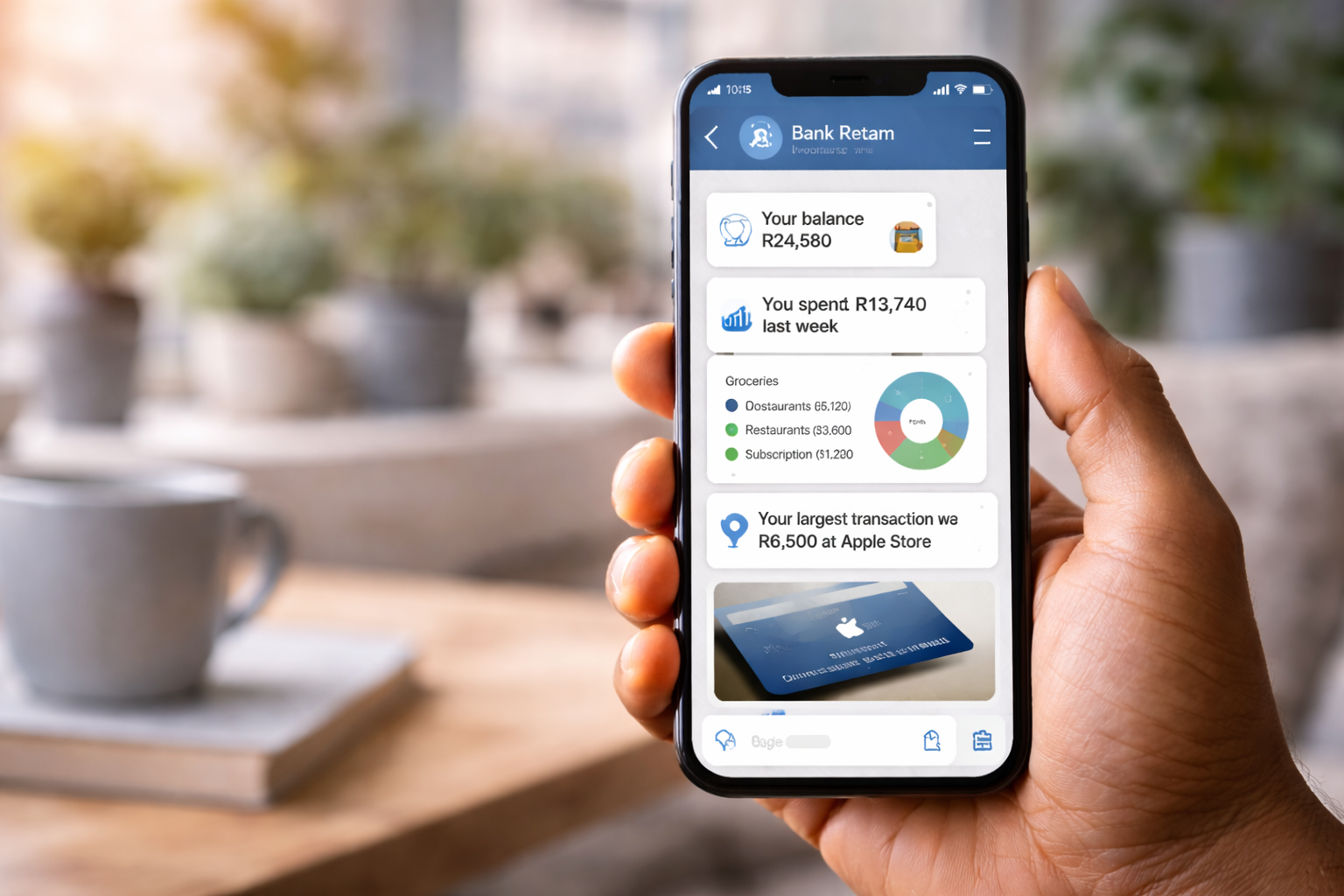
Chat-based personal finance assistant
Turn Telegram or any chat platform into your personal banking assistant. Check balances, review spending, and get instant financial insights using Investec APIs.
FAQs
Frequently asked questions about our bank integrations.
Login on Investec Online, navigate to Manage in the left-hand menu, then click Investec Developer and follow the on-screen steps to enrol.
Yes. You can explore our APIs using the sandbox environment, which lets you test endpoints with mock data before going live. See the Sandbox guide for details.
Investec provides pre-built connectors for ERP systems like Sage and Xero as well as to MSExcel. See the Connectors section for details.
The Posted Order of a transaction may start out listed as 0 and then change to the correct number once it has settled. To be safe, ignore transactions while their Posted Order =0.
transactionDate is the date that you swiped your card or issued a payment. postingDate is the date that the amount was deducted from your balance.
No, limits are set up as per online banking. You must have made a payment to the beneficiary via Investec Online before making a payment to a beneficiary via the API.
If your payments are processing immediately or cannot enter an approval workflow, contact your banker to review the multi-user access (MUA) setup on the account. To support initiate-authorise controls, a separate MUA user profile must be configured to initiate payments, while a higher-level user (yourself) authorises them. There must be an identifiable individual behind the user profile that is set up to initiate the payment.
Beneficiaries are associated with a user's multi-user access (MUA) profile, rather than the account itself. Different users on the same account can therefore maintain different beneficiary lists. If your team added the beneficiaries under a different profile, you will not be able to see these beneficiaries. Contact your banker to assist with moving these beneficiaries to your profile.
The beforeTransaction method has a limited window of 2 seconds to execute, so it's important to ensure your code is efficient and responds within that timeframe. However, the afterTransaction method provides a larger window of 15 seconds for post-transaction actions.
- On Investec Online, ensure you are activated for Investec Developer (see how to activate your account).
- Navigate to Low-code quickstart.
- Here you can choose from 3 different card rules, no coding required. You can set a transaction limit on the card, limit usage of the card to a specific merchant or limit usage of the card to a merchant category. You can only choose one of these rules at a time at present.
The online IDE is a JS code editor based on Monaco Editor, the same editor that powers VS Code.
- There are 3 methods which you can access for each card transaction:
beforeTransaction,afterTransactionandafterDecline - Intercept card transactions and decline based on your code with the
beforeTransactionhook - Publish code to a securely hosted VM instance
- Perform transaction simulations using the online simulator
- Enable/disable the code executing against a specific card
- Access the card authorisation object and meta-data
- Call external APIs using
node-fetch
The functionality consists of 2 parts: main.js is where you update your code, and env.json is where you save your environment variables. These files are encrypted during network communications for security reasons.
main.js
main.js requires two methods for card transaction interception:
beforeTransaction
Every time you execute a transaction from your Investec card, the beforeTransaction method intercepts the authorisation object before it is approved by Investec. You can apply logic to either decline or approve the transaction. You must return a boolean: return true to approve, return false to decline.
Note: beforeTransaction has a limited window of 2 seconds to execute.
afterTransaction
Executed once beforeTransaction has completed. This method has a longer window of 15 seconds, giving you time to communicate with external data sources such as updating a database.
Examples
Approve a transaction
const beforeTransaction = async () => {
  return true; // always APPROVE
};
Decline a transaction
const beforeTransaction = async () => {
  return false; // always DECLINE
};
Apply conditional logic
const beforeTransaction = async (authorization) => {
  return authorization.centsAmount < 5000;
};
Log transaction object
const afterTransaction = async (transaction) => {
  console.log(transaction);
};
env.json
Within env.json, you can save environment variables - name/value pairs available for reference in main.js via process.env. These files are encrypted during network communications for security.
// env.json
{
  "foo": "bar"
}

// Access in main.js
const value = process.env.foo; // "bar"
Simulating a transaction
You can differentiate between a simulated transaction and a production transaction by the transaction reference.
const afterTransaction = async (transaction) => {
  if (transaction.reference === 'simulation') {
    // This is a simulated transaction
  }
};Investec APIs uses OAuth 2.0 Client Credentials. You will need your Client ID, Client Secret, and API Key to obtain a Bearer token.